
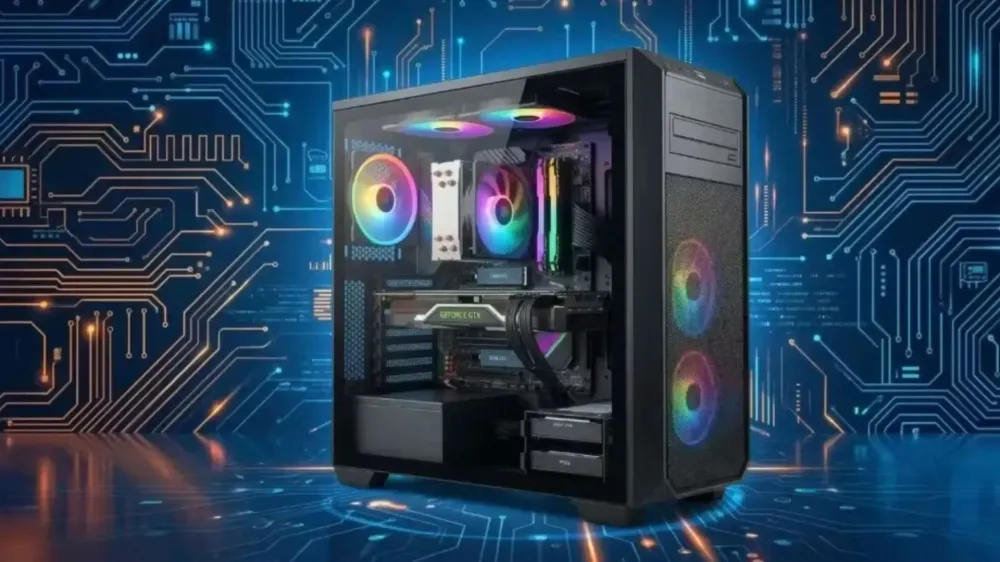
Talking about computer or PC internals sometimes feels like learning a foreign language. There are so many abbreviations that make you dizzy: CPU, GPU, RAM, SSD, PSU, and friends. But actually, if we use the right analogy, understanding computer components is easy.
A computer is basically very similar to a restaurant or our daily workspace. Each component has a specific task, and if one is slow or problematic, the entire system will be hampered (or what we usually call a bottleneck).
So, so you won't be confused anymore when you want to build a PC, buy a laptop, or just want to understand how the machine in front of you works to run applications or compile code, let's break down the meaning of each computer component using everyday language that is easy to understand!
1. Motherboard
Analogy: The foundation of a house or road infrastructure.
The motherboard (often shortened to mobo) is a main circuit board that is quite large. As the name suggests, it is the "mother" that unites all the other "children" components.
Everything from the processor, RAM, graphics card, to USB ports are attached or connected here. The motherboard has complex circuit paths that act as highways to send data between components. If you buy a motherboard, you have to make sure the "socket" matches the processor you want to use. It's like you can't put a car (processor) into a garage (mobo socket) that doesn't fit.
2. CPU / Central Processing Unit (Processor)
Analogy: The human brain or the head chef in a restaurant.
The CPU is the brain of the computer. The most famous brands are usually Intel (Core i3, i5, i7) and AMD (Ryzen). It's small, square-shaped, but the price can make your wallet cry.
The CPU's job is to receive commands, think about them, then execute them. For example, when you open a text editor application, run a local server, or code a fairly complex website, the CPU works hard to process all those lines of code and instructions.
The CPU has what are called "Cores" and "Threads". Going back to the restaurant analogy, one Core is like one chef. If your processor has 8 cores, it means there are 8 chefs in the kitchen ready to cook together. The more cores and the higher the work speed (usually measured in GHz), the faster the computer completes heavy tasks without stalling.
3. RAM / Random Access Memory
Analogy: A work desk or kitchen table.
RAM is short-term memory. Why do we need short-term memory? Well, imagine you are working. Books, pens, and the laptop you are using are definitely placed on the table for easy access, right? Well, RAM is your work desk.
Every time you open an application (for example, opening many tabs in Google Chrome, opening the terminal, plus opening Spotify at the same time), the computer will move data from the storage warehouse (Hard disk/SSD) to the table (RAM) so the CPU can access it very quickly.
If your RAM is small (the table is narrow), automatically not many items can be placed there. As a result, if you open many applications, your computer will feel laggy or slow because the computer has to go back and forth to get data from the warehouse. That's why having ample RAM (standard now is at least 8GB or safer 16GB) makes the computer feel smooth when multitasking.
4. Storage / Hard Drive (HDD & SSD)
Analogy: A filing cabinet or storage warehouse.
If RAM is the work desk (short-term), then Storage is the cabinet or warehouse where you store all items (long-term). The operating system (Windows, MacOS, Linux), games, old photos, to website project files containing thousands of lines of code, everything is stored here and will not disappear even when the computer is turned off.
In the past, people used HDD (Hard Disk Drive). This is like an old-fashioned warehouse using rotating metal platters. Finding items in an HDD is quite slow because the needle has to spin around looking for the file location.
Now, it's the era of SSD (Solid State Drive). SSDs have no moving parts, everything uses memory chips. This is like a super modern warehouse where the doors are automatic and items can be retrieved in milliseconds. There is also a variant of SSD called NVMe (shaped like a long stick of gum) which speeds can be ten times faster than regular HDDs. If your computer uses an SSD, the booting process or loading heavy applications feels instant.
5. GPU / Graphics Processing Unit (VGA Card)
Analogy: An artist or visual designer.
The CPU may be smart and can handle images, but it easily gets overwhelmed when asked to draw thousands of three-dimensional pixels every second. That's where the GPU (graphics card) comes in.
The GPU is a component specifically tasked with processing graphics or visuals so they can appear on the monitor screen. If you only use a computer for typing articles, checking website SEO, or managing servers, usually the computer doesn't need an additional GPU because the CPU already has a small built-in GPU (called Integrated Graphics).
However, if you want to play HD graphics games, edit high-resolution videos, or render 3D logo designs, you need a Dedicated GPU (separate graphics card) that is bulky, has its own fan, and is super powerful (like the NVIDIA RTX or AMD Radeon series). This GPU is like a speed artist whose job is only focused on painting detailed images onto your screen non-stop.
6. PSU / Power Supply Unit
Analogy: The heart or electrical generator.
The PSU is just a metal box with many cables like an octopus coming out of its belly. Even though it doesn't make the computer faster, never be stingy when buying a PSU!
Computer components cannot be directly plugged into the mains because household electricity is unstable and has a different type. The PSU's job is to draw electricity from the wall socket, smooth out the voltage, then distribute it to the Motherboard, CPU, GPU, and other components in the right portions.
Like the heart, if the PSU is shoddy, the flow of "blood" (electricity) to other components can be stalled, jumpy, or even cause a short circuit. If the PSU explodes, other expensive components can be fried. Choose a PSU that has at least "80 Plus" certification (Bronze, Gold) as a guarantee of power efficiency.
7. Cooling System
Analogy: AC or fan in the workspace.
Electronic components that work hard (especially the CPU and GPU) generate heat. Heat is the main enemy of electronics. If the computer overheats, its performance will automatically be reduced to prevent melting (the fancy term is thermal throttling).
Therefore, computers need cooling. Usually there is a fan attached on top of the CPU, plus special paste (thermal paste) applied between the CPU and fan so heat transfers quickly. For high-end PCs, many use liquid cooling systems that work like a car radiator.
8. PC Case
Analogy: The house or body frame.
The case is the box where all the components are assembled. Its function is not just for style or to show off RGB lights. A good case is designed to have good airflow. The case must be able to pull cool air from outside into the inside, and expel hot air from inside to outside. If the case airflow is bad, the components inside will overheat like being in an oven.
How Do They All Work Together?
To give you a better picture, imagine the process when you press the Power button on your PC:
- The PSU immediately wakes up, takes electricity from the wall, and distributes it to the Motherboard.
- Motherboard tells the CPU, "Hey, wake up, boss has pressed the power button!"
- The CPU immediately looks for the operating system file (Windows) in the Storage (SSD/HDD).
- Since direct access from CPU to SSD takes a bit of time, the operating system and needed programs are temporarily moved to RAM for faster access.
- After everything is ready on RAM, the CPU instructs the GPU to start "drawing" the Windows desktop display onto your monitor screen.
- And voila! Your computer turns on and is ready for work.
Understanding these components makes us wiser when upgrading a computer. For example, if your computer is slow when opening many software or dozens of browser tabs, what needs to be added is RAM, not the CPU. But if your computer is slow when booting from completely off to the desktop, that means you need to replace your old hard disk with an SSD.
Confused by terms like CPU, RAM, or GPU? Let's understand the meaning and function of each computer component using everyday language that is easy to comprehend!
Related Articles

Written by
Wilan
A regular contributor to Bali Island Tekno who actively shares knowledge about technology, programming, and the world of software engineering.