
Have you ever been in the middle of chasing a deadline or focusing on work, when suddenly your Windows laptop or PC slows down or even forces a restart? The classic reason: the system is running Windows Update automatically in the background. This kind of incident really messes up your mood, especially when you need your device to work quickly and without interruptions.
Now, for those of you who often experience this annoying moment, don't worry. To prevent it from happening again and disrupting your productivity, we can actually manage and temporarily disable the automatic update feature.
The steps are very easy, just follow these instructions:
1. Go to Windows Update Settings
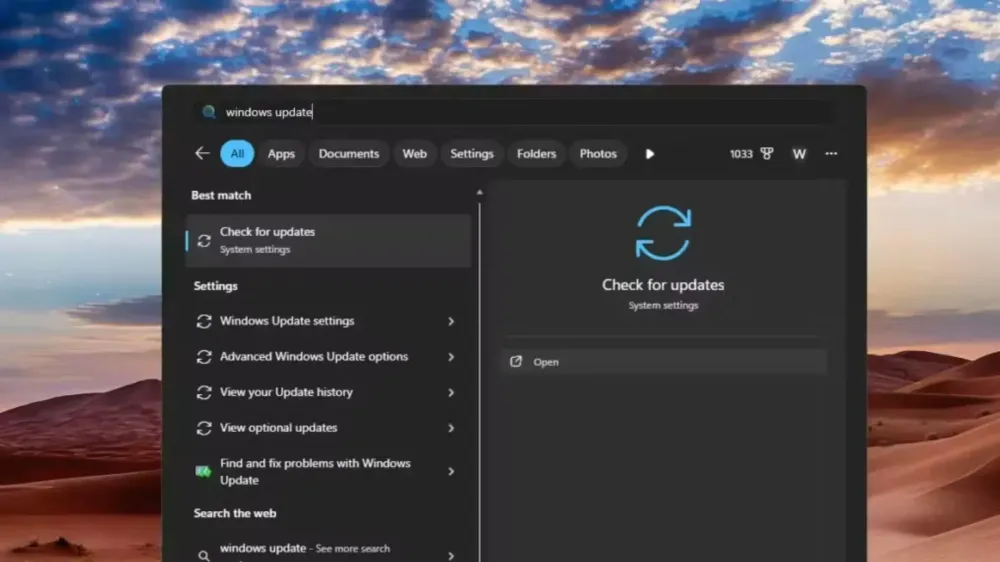
The first step is to open the settings menu. Click the Start button (Windows logo on the bottom of the screen), then type "Windows Update settings" in the search bar, and click to open.
2. Set a Pause Duration in the "Pause Updates" Menu
Once the settings window opens, take a look at the options on the screen. There you will find a menu called "Pause updates". Through this menu, we can delay the system from performing automatic updates.
Simply click on the time option. The nice thing is, Windows 11 gives us the freedom to choose a fairly long pause duration, ranging from 1 week up to a maximum of 5 weeks. Just pick the duration that best suits your busy schedule.
Important Note!
One thing that really needs to be remembered, this method of pausing updates is not permanent. Why is that? Because basically, regular updates from Windows are very crucial. These updates patch security holes and protect our computer system from various malware and the latest virus threats.
So, use this pause feature wisely. Only do it when you are really busy and don't want to be disturbed by the Windows installation process which sometimes takes a long time. Once your tasks and work are done, it's a good idea to resume the updates so your computer stays secure and performs optimally!
Related Articles

How to Choose a Laptop According to Your Needs Without Overspending


Tips for Dealing with PC Component Price Surges: RAM, SSD, and GPU
Written by
Wilan
A regular contributor to Bali Island Tekno who actively shares knowledge about technology, programming, and the world of software engineering.