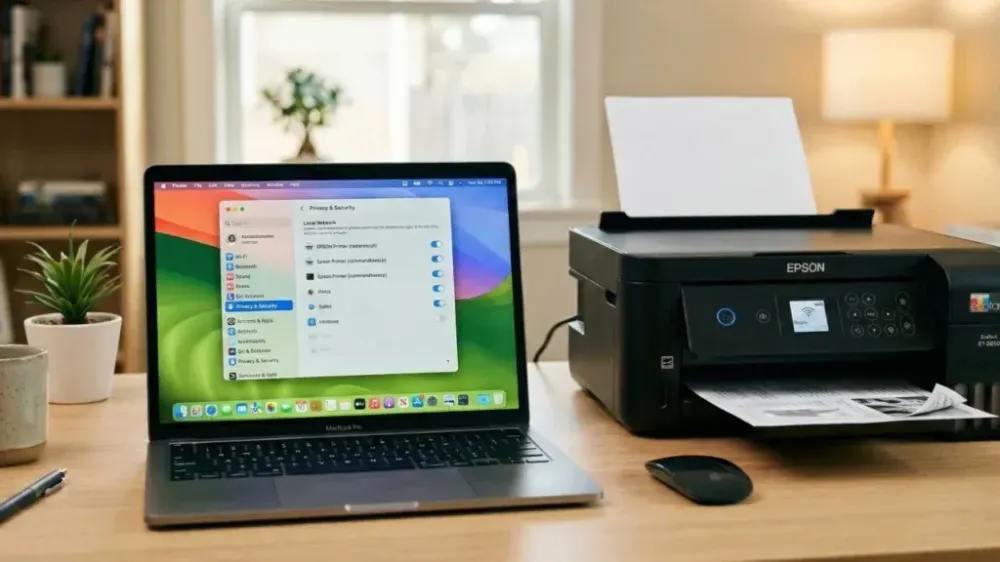
Have you ever been in a hurry to print an important document, and suddenly your Epson wireless printer stops working? Even though it worked perfectly before, after updating Mac OS to the latest version, the printer got an error and won't respond at all. Frustrating, right?
Don't worry, you're not alone and your printer is not broken.
This issue is actually very trivial. In the latest Mac OS version, Apple made some changes and tightened the Privacy & Security system. The operating system now requires extra permission to allow third-party applications or drivers to communicate with other devices on your WiFi network (Local Network).
Because the permission has not been granted, your Mac automatically "blocks" the Epson driver from talking to the printer. That's why the printing process keeps failing.
So, to fix it, we just need to grant access for the Epson driver to run on the Local Network. It's very easy, follow the steps below:
1. Enter the Privacy & Security Menu
First, click the Apple icon in the top-left corner of your Mac screen, then select System Settings. Once the settings window opens, scroll down on the left menu and find the Privacy & Security menu.
2. Open Local Network Settings
On the Privacy & Security page, scroll down slowly until you find an option called Local Network. Click that option. This menu is where your Mac manages which applications are allowed to access other devices on the same WiFi network.
3. Enable Permission for Epson Printer
After entering the Local Network settings, you will see a list of applications and drivers that have requested network access.
Look for items related to your Epson printer. Usually, they will be listed as EPSON Printer (rasteroscpll) and Epson Printer (commandtoescp). If the toggle (slider button) next to them is still off or grayed out, just click it until it turns on (turns blue).
This step will allow your Mac to send print commands to your Epson printer via WiFi.
Time to Test!
Once all the above steps are done, you can close the Settings window. Try opening any document and print again. Now your Epson printer should be back to normal and ready to work with you.
Good luck! If you still encounter problems, try